Disclosure: This post may contain affiliate links. See our full disclosure.
Updated May 2026. Originally published 2019.
Google rebranded Nest as “Google Nest” fully in 2023. Whether you have an older Nest Cam or a newer Google Nest Camera, the security principles are the same. In 2026, camera hacking is more prevalent than ever not because the cameras have weak hardware, but because the accounts protecting them have weak passwords.
This guide gives you 8 specific actions to take today to protect your Nest camera from unauthorized access.
Why Nest Cameras Get Hacked (It’s Not What You Think)
The most common way a Nest camera gets compromised isn’t a sophisticated exploit. It’s credential stuffing where attackers take username/password pairs leaked from other data breaches and try them on Nest accounts.
If you’ve ever used the same password for Google/Nest that you’ve used anywhere else that was ever breached, you’re at risk. Data breach notification service HaveIBeenPwned.com (free) shows you if your email has appeared in known data breaches.
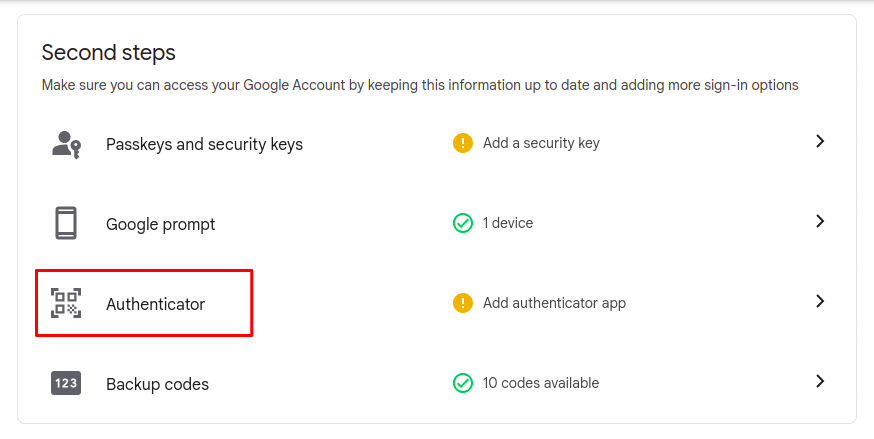
Step 1: Enable Two-Factor Authentication (2FA)
This is the single most important step. With 2FA, even if someone has your Google password, they can’t access your account without also having your phone.
How to enable:
- Go to myaccount.google.com
- Click Security in the left sidebar
- Under “How you sign in to Google,” click 2-Step Verification
- Follow the setup — use Google Authenticator app (more secure than SMS)
- Save backup codes in a safe place
Why Google Authenticator over SMS: SMS 2FA can be defeated by SIM-swapping attacks where an attacker convinces your phone carrier to transfer your number to them. An authenticator app lives on your phone and generates codes locally thus far harder to intercept.
Step 2: Use a Unique, Strong Password
Your Google password should be:
- At least 16 characters
- Not used on any other site
- Not containing your name, birthday, or address
Practical solution: Use a password manager (Bitwarden is free and open-source, 1Password is the premium option). Generate a random 20-character password, save it in the password manager, done. You’ll never need to remember it.
Check if your current password has been in a breach: go to passwords.google.com — Google’s Password Checkup will flag any saved passwords found in data breaches.
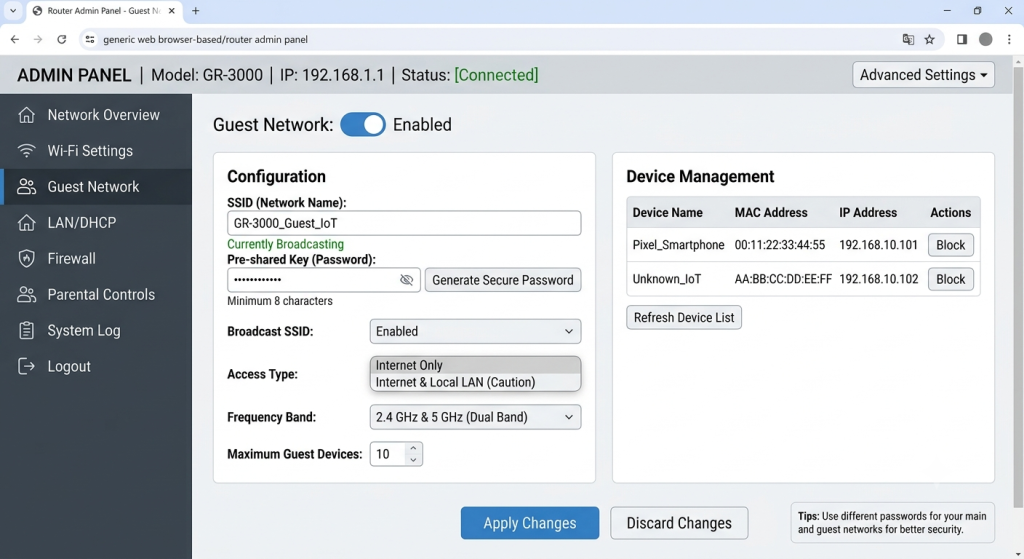
Step 3: Set Up a Dedicated Wi-Fi Network for Smart Devices
This is a step most people never take — and it provides significant security isolation.
If an attacker compromises one device on your main Wi-Fi network (a laptop, a phone, another IoT device), they can potentially reach other devices on the same network — including your cameras.
The fix: Create a guest network or IoT VLAN on your router and put all your cameras, smart doorbells, and other IoT devices on it. They can access the internet (for cloud sync) but can’t communicate with your computers or phones on the main network.
How to set this up:
- Log into your router admin panel (usually 192.168.1.1 or 192.168.0.1)
- Look for “Guest Network” or “IoT Network” settings
- Create a separate network with a different SSID and password
- Connect all Google Nest cameras to this network only
- Connect your computers, phones, and tablets to your main network
Most modern routers (Eero, Google Nest Wifi, ASUS, TP-Link) support this in their app.
Step 4: Audit Who Has Access to Your Home in Google Home
Over time, you may have shared your Google Home with family members, housesitters, or service technicians who no longer need access.
How to check:
- Open Google Home app
- Tap your Home name → Settings → Household
- Review every person listed
- Remove anyone who should no longer have access
This takes 2 minutes and is often skipped entirely.
Step 5: Keep Firmware Updated
Google Nest cameras update automatically when connected to Wi-Fi but verify automatic updates are enabled.
In the Google Home app:
- Select your camera → Settings (gear icon)
- Confirm “Automatic Updates” is on
- Check the firmware version shown if it’s more than 3 months behind the latest release, manual update or a factory reset may be needed
Firmware updates patch known security vulnerabilities. Cameras running outdated firmware are documented attack targets.
Step 6: Review Your Google Account’s Connected Apps
Third-party apps that have Google account permissions can potentially access your Nest camera stream if given Home control permissions.
How to audit:
- Go to myaccount.google.com/permissions
- Review every app that has access to your Google account
- Remove any app you don’t recognize or no longer use
- Pay particular attention to anything with “Google Home” or “Smart Home” permissions
Step 7: Check Camera Placement for Privacy
This isn’t hacking prevention it’s privacy hygiene. Cameras should not be positioned:
- Facing bedrooms
- In bathrooms
- Pointed toward neighbors’ properties (legal issue in some jurisdictions)
- In locations where footage could capture sensitive information
If a camera is hacked, only footage the camera captured is exposed. Thoughtful placement limits the potential damage from any breach.
Step 8: Use Google Advanced Protection for High-Risk Users
If you’re a journalist, public figure, domestic violence survivor, or anyone with elevated account security needs, Google’s Advanced Protection Program (google.com/landing/2step/advanced-protection.html) provides the strongest available Google account security. It requires a physical security key for login. It’s free but requires purchasing a hardware key (~$25-50 for a YubiKey from Amazon: https://www.amazon.com/s?k=YubiKey+security+key).
Most users don’t need this level. But if your threat model is elevated, it’s the most robust option available.
Quick Security Checklist
□ 2-Factor Authentication enabled (Google Authenticator app, not SMS)
□ Unique password not used anywhere else
□ Cameras on separate IoT/guest network
□ Household member access audited in Google Home
□ Automatic firmware updates confirmed ON
□ Connected third-party app permissions reviewed
□ Camera placement reviewed for privacy
Completing this checklist takes about 30 minutes and substantially reduces your exposure to the most common attack methods targeting smart home cameras.
Related Products Worth Knowing
While you’re securing your Nest cameras, two products that complement a secure smart home setup:
Google Nest Cam (Wired, indoor/outdoor) — current model: https://www.amazon.com/s?k=Google+Nest+Cam+wired+2nd+gen
YubiKey 5 NFC — hardware security key for Advanced Protection: https://www.amazon.com/s?k=YubiKey+5+NFC
Building Your Layered Defense?
This product is part of your Detection Layer — but one camera or one doorbell isn’t a complete defense plan. Real layered home defense means four layers working together: Detection, Delay, Deterrent, and Last Resort.
I’ve built a free guide that lists every product I’d actually buy at each layer — with honest prices and what to skip.
See My Complete Layered Defense Guide →Free · No email required · Updated 2026